OpenClaw — Full Tutorial
Everything you need to install, configure, and extend OpenClaw — the open-source personal AI assistant that runs on your machine and talks to you on the chat apps you already use.
Official home: openclaw.ai · Docs: docs.openclaw.ai · Source: github.com/openclaw/openclaw
This guide follows the product story on the homepage (install → gateway → memory → tools → skills → channels → automation), uses prose and lists only (no comparison tables), and ships terminal + diagram GIFs like our Hermes masterclass.
What you'll have at the end
- OpenClaw installed with the Gateway daemon running
- Browser Control UI at
http://127.0.0.1:18789/ - At least one messaging channel (Telegram recommended for first test)
- A configured workspace with
SOUL.mdand optional ClawHub skill - Understanding of cron, heartbeats, and multi-agent routing
Introduction — the AI that actually does things
OpenClaw is built for a simple promise: message an assistant from your phone and it does real work on your computer — email triage, calendar checks, shell commands, browser tasks, file edits, and custom workflows via skills.
Unlike a chat-only bot, OpenClaw is self-hosted. Your context, skills, and session history live on your hardware. You pick the model (Anthropic, OpenAI, Google, local Ollama, and more). You control which channels can reach the agent and who is on the allowlist.
Community feedback on openclaw.ai consistently highlights the same strengths: persistent memory, persona onboarding, proactive cron/heartbeats, and the ability to extend the system by chatting (skills, plugins, even prompt hot-reload).

Part 1 — How OpenClaw is structured
OpenClaw centers on one long-running process: the Gateway. It is the control plane for:
- Chat channels — WhatsApp, Telegram, Discord, Slack, Signal, iMessage, Matrix, Teams, WebChat, and plugin channels
- Agent runtime — tool use, sessions, memory, skills
- Control UI — browser dashboard for chat, config, and diagnostics
- Companion apps — macOS menu bar, Windows tray, iOS/Android nodes (camera, voice, Canvas)
flowchart LR
  A[Chat apps + WebChat] --> B[Gateway :18789]
  B --> C[Agent runtime]
  C --> D[Workspace + skills]
  C --> E[Tools: shell browser cron]
  C --> F[LLM provider]
  B --> G[Control UI]
Docs: Architecture · Gateway
The Gateway is the single source of truth for sessions and routing. CLI commands (openclaw agent, openclaw onboard) and the dashboard all talk to the same core.

Part 2 — Prerequisites
You need Node.js 24 (recommended) or Node 22.19+ for compatibility. OpenClaw fails on older Node versions — if you are stuck on Node 20, use the Node 22 helper from our OpenClaw + Gemma guide.
You also need:
- macOS, Linux, Windows 10+, or WSL2
- An API key from your chosen provider or a local Ollama install
- ~5 minutes for onboarding; more if you add WhatsApp or iMessage pairing
Check:
Part 3 — Install
Three paths match openclaw.ai:
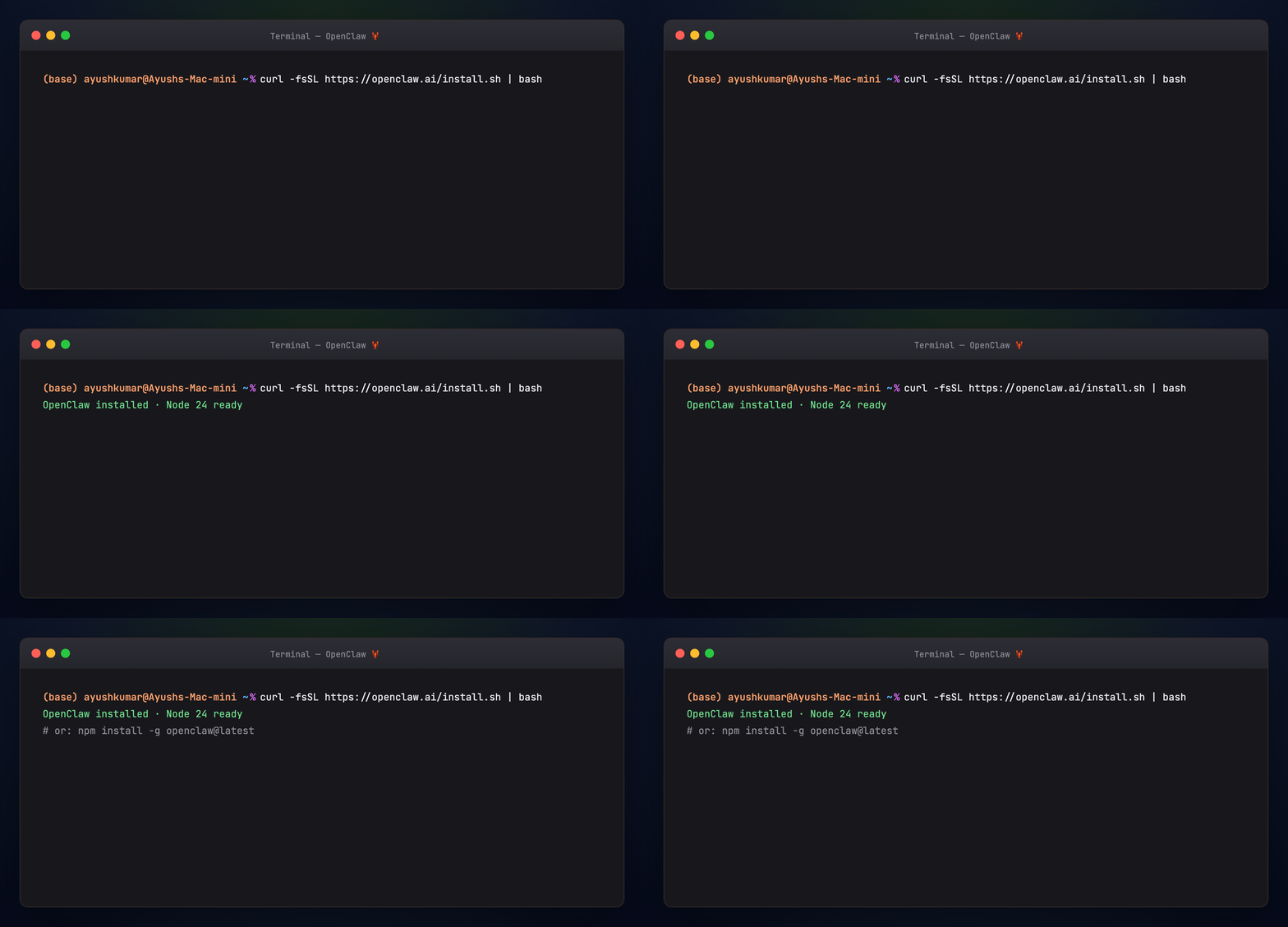
One-liner (macOS, Linux, WSL)
The installer can pull Node and dependencies. On macOS, first run may prompt for Administrator access (Homebrew).
npm global
Hackable / from source
curl -fsSL https://openclaw.ai/install.sh | bash -s -- --install-method git
git clone https://github.com/openclaw/openclaw.git
cd openclaw && corepack enable && pnpm install
pnpm openclaw onboard
Switch release channels later:
Companion apps (beta): native macOS (15+) and Windows tray apps from openclaw.ai — gateway control, chat, and node features without living in the terminal.
Part 4 — Onboard the Gateway
Run the guided wizard:
The wizard walks through:
- Gateway bind and authentication
- LLM provider and model (API key or Ollama)
- Workspace path (default under
~/.openclaw/) - Channel setup (Telegram is the fastest smoke test)
- Daemon install (launchd on macOS, systemd on Linux) so the Gateway survives reboots
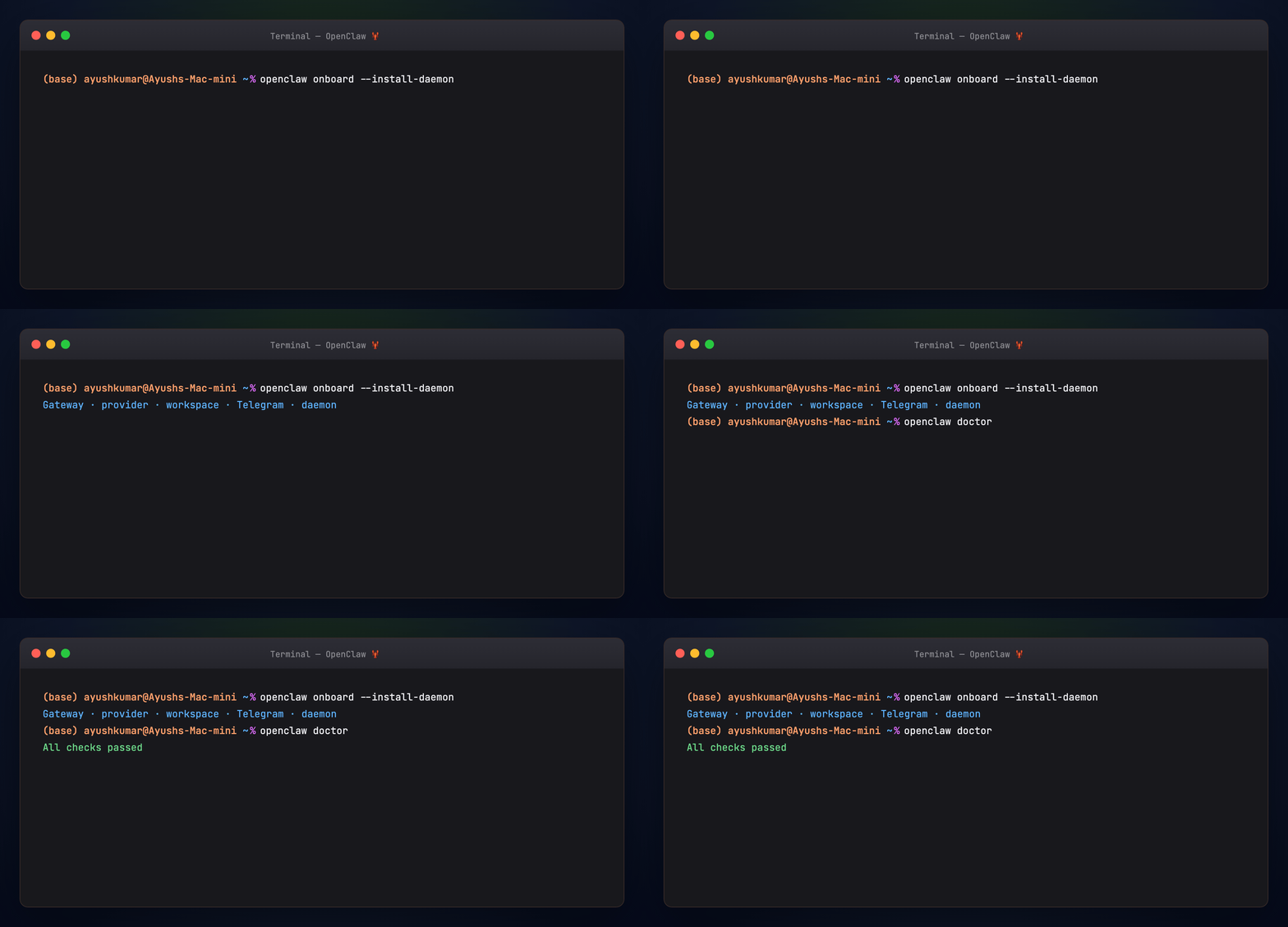
Verify:
Part 5 — Open the Control UI
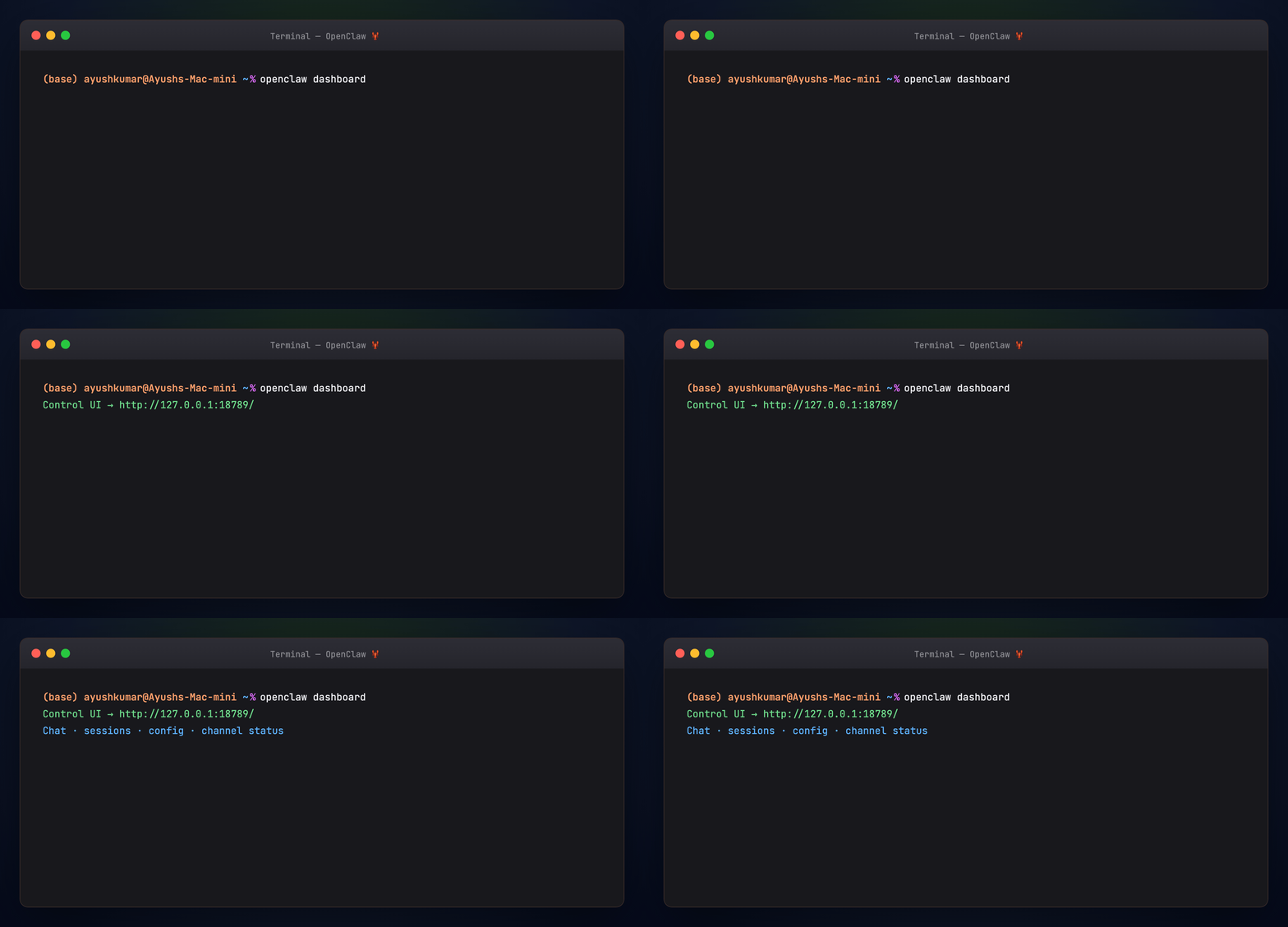
Default URL: http://127.0.0.1:18789/
From the dashboard you can chat, inspect sessions, edit config, and diagnose channel connections. Remote access patterns (Tailscale, SSH tunnel) are documented under Remote access.
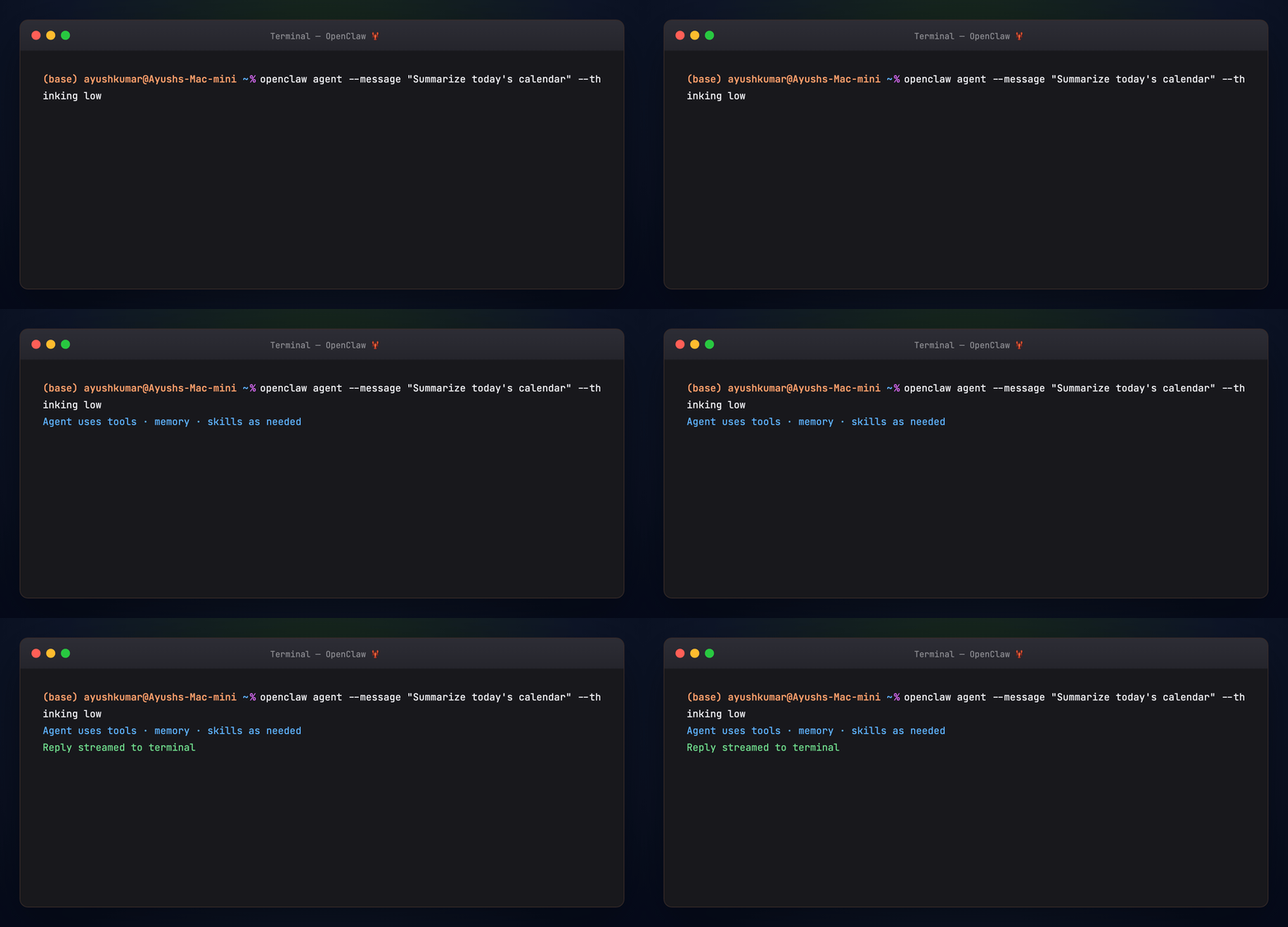
CLI chat without the browser:
Part 6 — What lives on disk
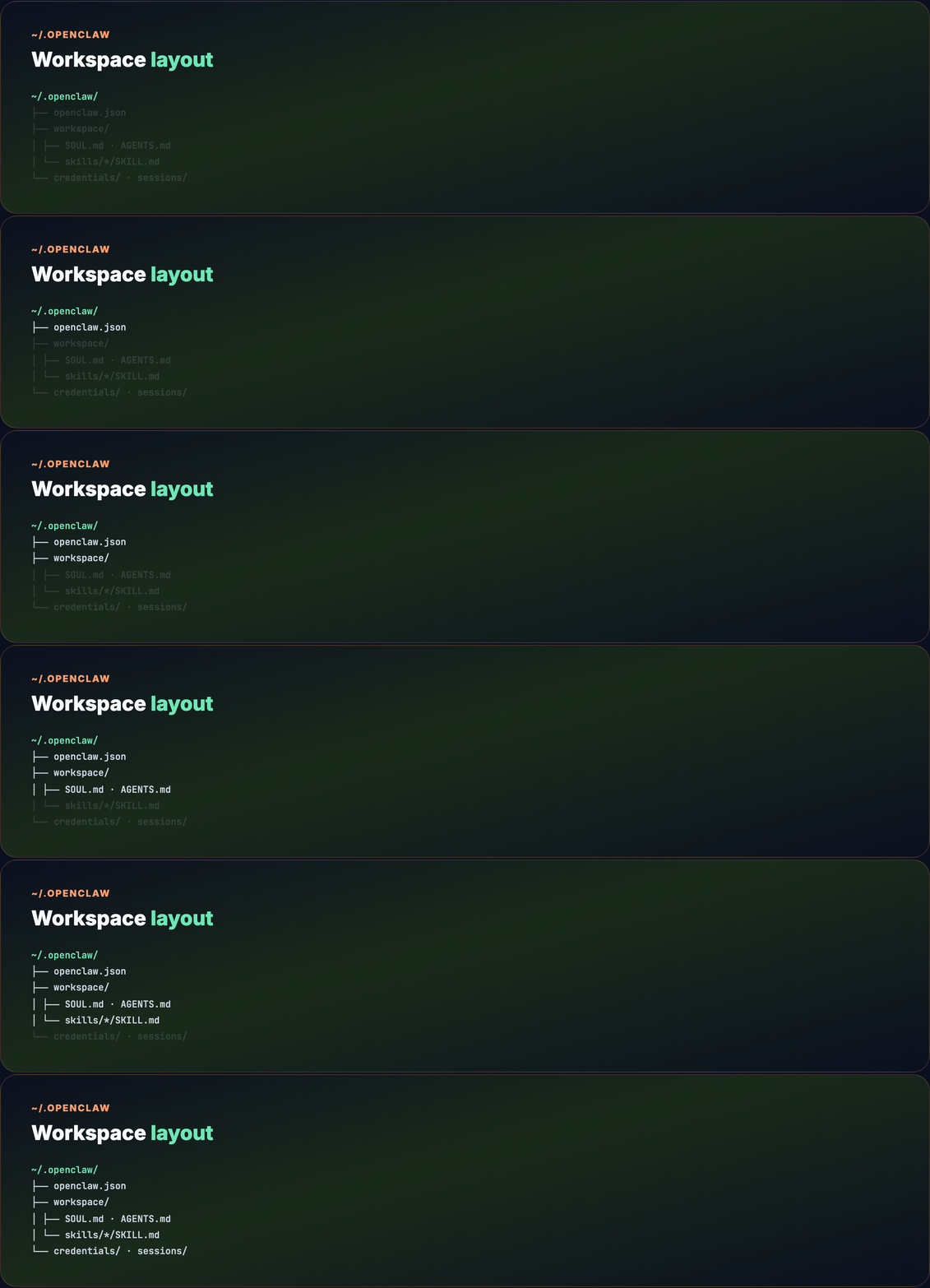
After onboarding, OpenClaw owns a home directory. Knowing the layout makes debugging easier.
~/.openclaw/
├── openclaw.json          # Main config (channels, models, security)
├── workspace/             # Agent workspace
│   ├── AGENTS.md
│   ├── SOUL.md            # Persona / identity
│   ├── TOOLS.md
│   └── skills/            # Installed + custom skills
│       └── <name>/
│           └── SKILL.md
├── credentials/           # Channel tokens (permissions-sensitive)
├── sessions/              # Session metadata
└── …                      # Logs, cron output, plugin state
openclaw.json is the source of truth for non-secret settings. Secrets and tokens route to appropriate credential stores.
SOUL.md defines who the agent is — tone, boundaries, and behavior. It is the identity layer (similar in spirit to Hermes SOUL.md, but living in the workspace).
skills/ is where procedural knowledge lives — bundled skills, ClawHub installs, and agent-authored skills.
Copy a starter soul from this guide:
Part 7 — Capabilities (from the homepage)
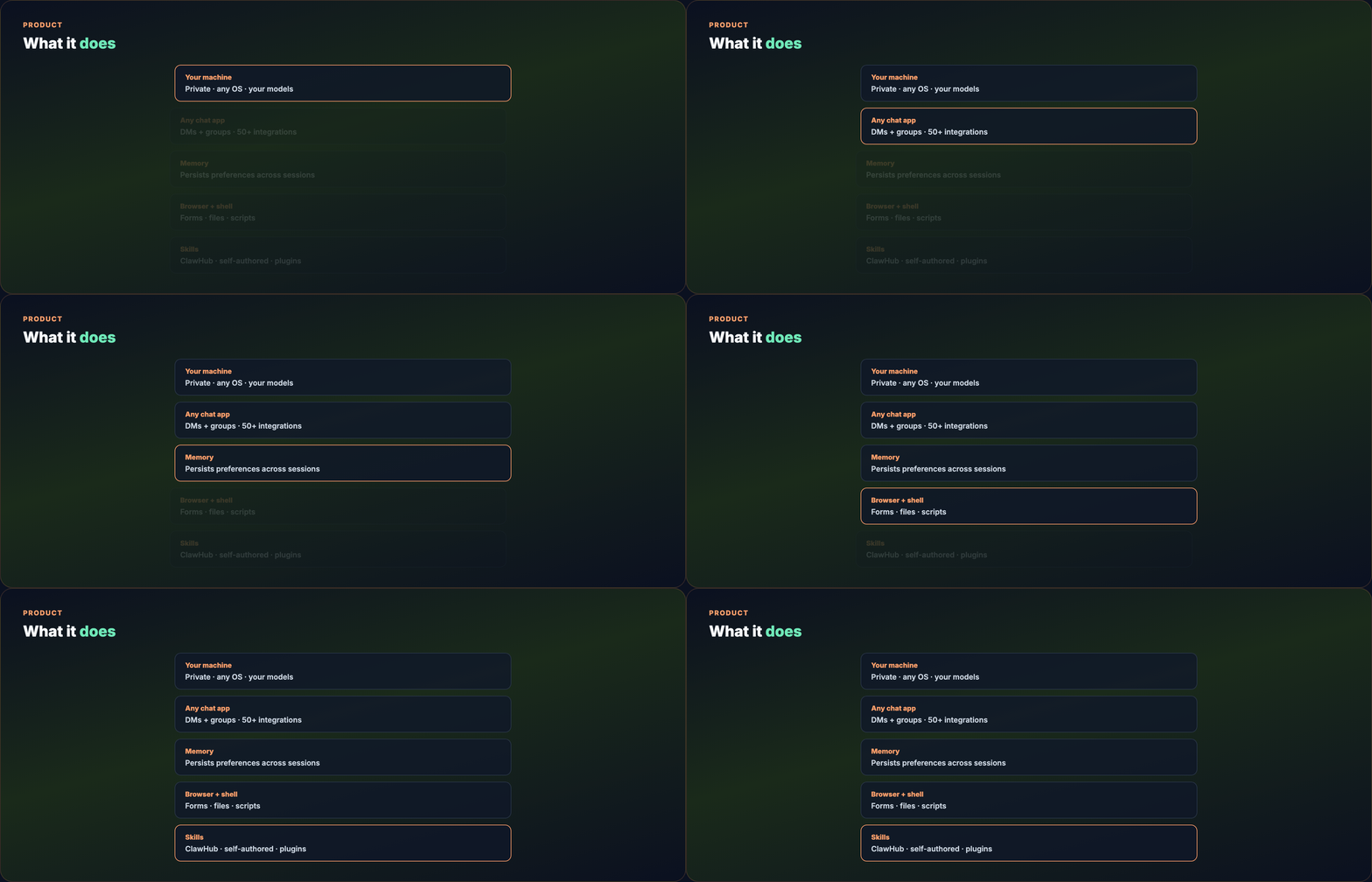
OpenClaw advertises six pillars on openclaw.ai. Here is what each means in practice.
Runs on your machine. macOS, Windows, or Linux. Connect Anthropic, OpenAI, Google, or local models. Data stays on your infrastructure unless a tool explicitly calls an external API.
Any chat app. One Gateway serves many channels. DMs and group chats are supported; group behavior often uses mention rules so the bot does not reply to every message.
Persistent memory. The agent remembers preferences and context across sessions — your assistant becomes specific to you, not a generic chatbot.
Browser control. Navigate pages, fill forms, extract data. Useful for research, booking flows, and admin panels that have no API.
Full system access (configurable). Read/write files, run shell commands, execute scripts. You choose sandbox vs full access based on trust and host environment.
Skills and plugins. Install community skills from ClawHub, add channel plugins, or describe a new workflow in chat and let the agent draft a skill.
Part 8 — Connect messaging channels
Telegram is the quickest first channel: create a bot with @BotFather, paste the token during onboarding or in config.
WhatsApp and iMessage require additional pairing steps documented in the Channels hub.
Minimal allowlist snippet — merge into ~/.openclaw/openclaw.json (full example in examples/openclaw-channels.snippet.json):
{
  channels: {
    whatsapp: {
      allowFrom: ["+15555550123"],
      groups: { "*": { requireMention: true } },
    },
  },
  messages: { groupChat: { mentionPatterns: ["@openclaw"] } },
}
Restart after config changes:
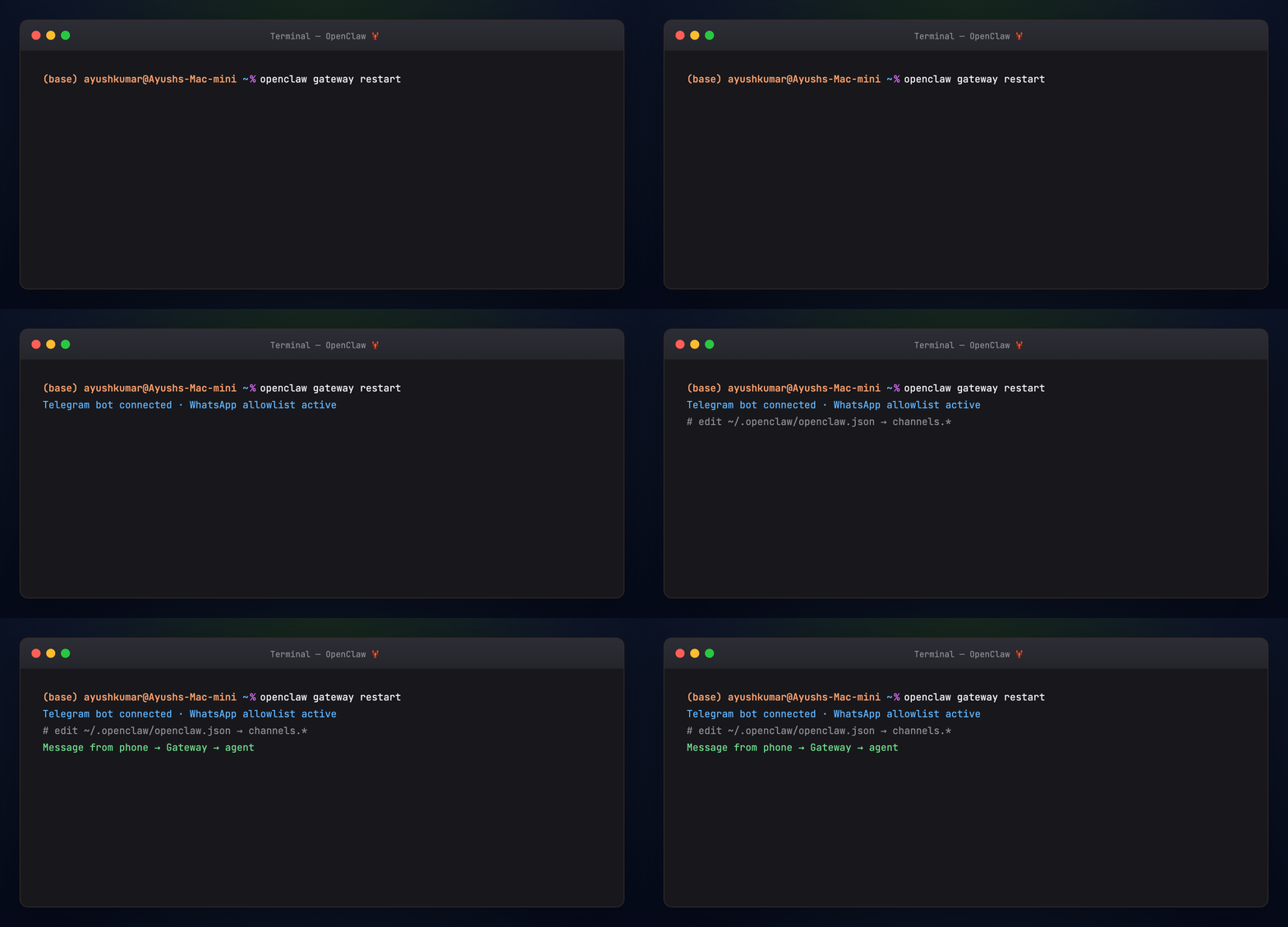
Security: start restrictive — allowlist phone numbers and require mentions in groups. See Security.
Supported surfaces include WhatsApp, Telegram, Discord, Slack, Signal, iMessage, Google Chat, Matrix, Microsoft Teams, Zalo, WebChat, and plugin channels — 50+ integrations on the marketing site.

Part 9 — Skills and ClawHub
Skills are Markdown with YAML frontmatter — the agent loads descriptions cheaply and pulls full instructions when a task matches.
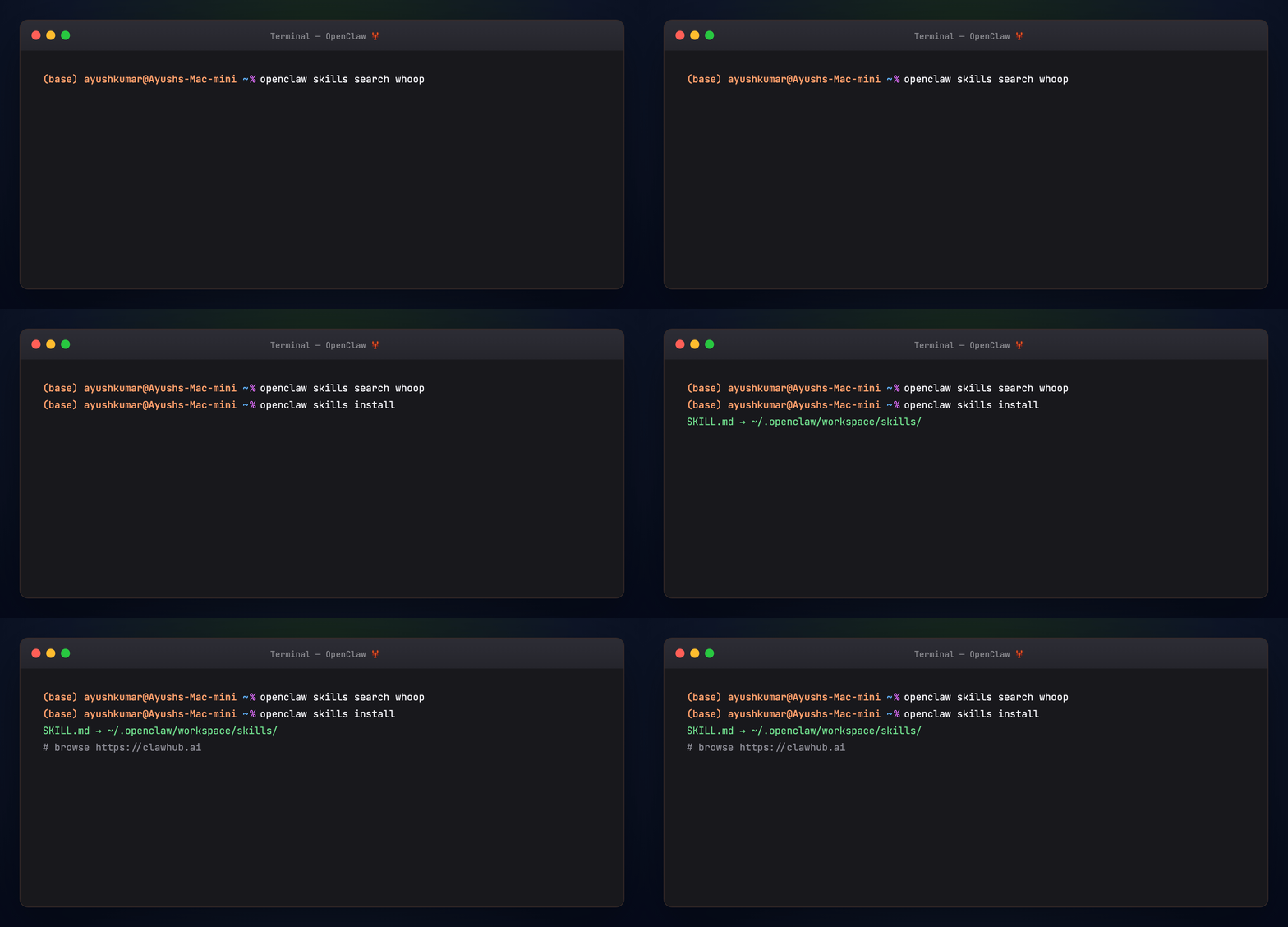
Install from ClawHub:
Browse clawhub.ai. Recent OpenClaw releases emphasize Skill Cards and security scanning (SkillSpector) for hub skills — see the Skill Workshop blog post.
The agent can also author skills from conversation — e.g. “build a skill that checks my WHOOP metrics” — matching patterns described in community shoutouts on the homepage.
Skill Workshop (2026): review and approve proposed skills before they change agent behavior — product direction toward safer self-modification.
Progressive loading keeps token use sane:
- Catalog view — names and descriptions only
- Full skill — load
SKILL.mdwhen triggered - References — optional deep files inside the skill folder

Team-private skills: host a git repo and install by slug, same pattern as Hermes Skills Hub taps.
Part 10 — Models and local inference
Set or switch models:
openclaw models list
openclaw models set anthropic/claude-sonnet-4
# or local:
openclaw models set ollama/gemma4:e2b
For a full local stack (Ollama + RAG skill), follow OpenClaw + Gemma + RAG.
Providers are swappable without rebuilding the Gateway — the agent runtime handles translation to supported API formats.
Part 11 — Proactive automation: cron and heartbeats
OpenClaw is designed to be proactive, not only reactive.
Cron jobs schedule isolated agent runs — daily briefings, inbox sweeps, reminders. Describe schedules in natural language or use cron syntax. Jobs persist in config and survive Gateway restarts.
Example prompt inside a chat session:
Every weekday at 8am, summarize my calendar and unread priority emails.
Deliver the summary here. Set this up as a recurring cron job.
List jobs:
Heartbeats are periodic check-ins — the agent may reach out when something needs attention (community reports surprise check-ins during heartbeats). Configure through workspace and gateway settings per docs.

Useful variants:
- One-shot delay:
/cron add 30m "Remind me to check the build" - Interval:
/cron add "every 2h" "Check server status" - Attach a skill: run a job with
--skill <name>so the agent loads a playbook first
Part 12 — Multi-agent routing
One Gateway can route multiple isolated agents — different workspaces, sessions, or senders. Useful for “work agent” vs “personal agent”, or separate Telegram bots.
Concepts:
- Session isolation — conversations do not leak context across routes
- Workspace per agent — distinct
SOUL.md, skills, and tools - Sender-based routing — map channels or users to different agents
Docs: Multi-agent routing

Compare with Hermes profiles (Hermes Profile Builder) — both solve isolation; OpenClaw optimizes for channel-first routing, Hermes for CLI profile aliases and learning loop.
Part 13 — Nodes, voice, and Canvas
Mobile nodes pair iOS/Android apps with the Gateway for camera capture, voice workflows, and Canvas (visual workspace). The macOS/Windows companion apps expose tray controls and local node mode.
Docs: Nodes
This is how users run “fix production from a dog walk” workflows — phone chat triggers agent execution on a home server or Mac mini.
Part 14 — OpenClaw vs Hermes (prose only)
Both are self-hosted, messaging-friendly agent runtimes. Neither is a hosted SaaS.
OpenClaw leads with the Gateway and channels — the product feels like “message your computer from WhatsApp.” Skills extend behavior; the community hub (ClawHub) is large; onboarding and Control UI are polished for personal assistants.
Hermes leads with the learning agent — runtime skill authoring, Curator maintenance, optional GEPA offline validation, and research-oriented tooling (MCP, profiles, training pipeline). See Hermes Agent Masterclass.
You can migrate between them: hermes claw migrate imports OpenClaw-style config into Hermes. Full side-by-side: Hermes vs OpenClaw.
Pick OpenClaw when channel UX, ClawHub, and dashboard-first setup matter most. Pick Hermes when the self-improving skill library and experiment loop matter most. Many operators run one primary runtime and borrow skills from the other ecosystem.
Part 15 — Troubleshooting
openclaw: command not found — reinstall globally or ensure npm global bin is on PATH.
Gateway will not start — run openclaw doctor; check port 18789 conflicts.
Node version errors — upgrade to Node 22.19+ or 24.
Channel connected but no replies — verify allowlists, mention rules in groups, and bot token.
Model errors — confirm API key in config; test with openclaw agent --message hi.
Docs entry: Troubleshooting
Part 16 — Verify this guide
Official links
- openclaw.ai — product home
- docs.openclaw.ai — documentation
- github.com/openclaw/openclaw — source
- clawhub.ai — skill registry
- Discord community
Regenerate visuals
cd guides/openclaw/assets
python3 render_terminal_gifs.py all
python3 render_diagrams.py all
cd ../../..
./scripts/prepare-docs.sh
Summary
OpenClaw is a Gateway-first personal agent: install with openclaw onboard, chat from the dashboard or your favorite messaging app, extend with skills and cron, and keep data on your machine. Start with Telegram and the Control UI, tighten security with allowlists, then add ClawHub skills and automation once the loop feels natural.